<?xml version="1.0" encoding="utf-8"?><feed xmlns="http://www.w3.org/2005/Atom" ><generator uri="https://jekyllrb.com/" version="4.3.4">Jekyll</generator><link href="https://alvinsim.com/feed.xml" rel="self" type="application/atom+xml" /><link href="https://alvinsim.com/" rel="alternate" type="text/html" /><updated>2026-01-27T09:32:29+00:00</updated><id>https://alvinsim.com/feed.xml</id><title type="html">Alvin Sim</title><subtitle></subtitle><entry><title type="html">Lock Ruby Version for Jekyll Sites</title><link href="https://alvinsim.com/jekyll-sites-lock-ruby-version" rel="alternate" type="text/html" title="Lock Ruby Version for Jekyll Sites" /><published>2026-01-26T00:00:00+00:00</published><updated>2026-01-26T00:00:00+00:00</updated><id>https://alvinsim.com/jekyll_sites_lock_ruby_version</id><content type="html" xml:base="https://alvinsim.com/jekyll-sites-lock-ruby-version"><![CDATA[<p>These are the steps to lock the Ruby version for Jekyll static websites. especially when the hosting site uses a specific version of Ruby.</p>

<p>For my case, I have two Jekyll websites hosted with different hosting providers, and both use different versions of Ruby.</p>

<h2 id="lock-to-a-specific-version">Lock to a Specific Version</h2>

<p>For this, I used <a href="https://rbenv.org">rbenv – the Ruby Version Manager</a>.</p>

<p>To install, I ran this command: <code class="language-plaintext highlighter-rouge">curl -fsSL https://rbenv.org/install.sh | bash</code>.</p>

<p><code class="language-plaintext highlighter-rouge">rbenv</code> can also be installed using <a href="https://brew.sh/">Homebrew</a>.</p>

<p>For one of my Jekyll sites, Ruby version 3.2.2 is required.</p>

<p>Navigate to the root directory of the Jekyll website project and run the command <code class="language-plaintext highlighter-rouge">rbenv local 3.2.2</code>, where “3.2.2” is the Ruby version.</p>

<p><code class="language-plaintext highlighter-rouge">rbenv</code> will create a ` <em>.ruby_version</em> file with “3.2.2” in the file.</p>

<h2 id="github-pages-ruby-gem">GitHub Pages Ruby Gem</h2>

<p>For Jekyll sites hosted on Github pages, there is a Ruby gem called “github-pages – https://github.com/github/pages-gem.</p>

<blockquote>
  <p>“A simple Ruby Gem to bootstrap dependencies for setting up and maintaining a local Jekyll environment in sync with GitHub Pages.” – README.md, pages-gem (GitHub)</p>
</blockquote>

<p>Add “github-pages” to the project’s Gemfile like so: <code class="language-plaintext highlighter-rouge">gem "github-pages", group: :jekyll_plugins</code>.</p>

<p>Then run <code class="language-plaintext highlighter-rouge">bundle install</code> to install the gem.</p>

<h2 id="conclusion">Conclusion</h2>

<p>By locking your Ruby version and using the appropriate gems, you can ensure your Jekyll sites are compatible with your hosting provider and avoid unexpected issues. Following these steps will help maintain a stable and reliable deployment environment for your static websites.</p>]]></content><author><name>Alvin Sim</name></author><category term="ruby" /><category term="jekyll" /><summary type="html"><![CDATA[Steps on how to lock the ruby versions for Jekyll sites]]></summary></entry><entry><title type="html">Hello (Again)</title><link href="https://alvinsim.com/hello-again" rel="alternate" type="text/html" title="Hello (Again)" /><published>2024-04-01T00:00:00+00:00</published><updated>2024-04-01T00:00:00+00:00</updated><id>https://alvinsim.com/hello-again</id><content type="html" xml:base="https://alvinsim.com/hello-again"><![CDATA[<p>Hi, again!</p>

<p>As most of you who may have not noticed, my website has been inactive and then unaccessible since 2021.</p>

<p>Lots of things have happened, both good and bad. The main thing was, the family joined me here Australia after 3 years!</p>

<p>Naturally, with their arrival, my focus shifted away from website upkeep. The same goes for my other site, <a href="https://whatthismusic.com/" target="_blank">What This Music</a>.</p>

<p>Between house hunting for rentals and eventually building our own home, spare time became a luxury. On top of that, my hosting provider revamped their plans, making them more expensive. It took me a good 2-3 months over the span of a year to migrate my site off of Wordpress.</p>

<p>Initially, I played around with <a href="https://gohugo.io/" target="_blank">Hugo</a>, but I was struggling with configuring a few of the themes. Eventually, I went back to Jekyll, which I’m more familiar with having used it to build What This Music. So far so good, without any major hiccups.</p>

<p>So, ya. Welcome to version 4.0.0 of www.alvinsim.com!</p>

<p>I truly appreciate your support and hope you’ll join me on this (new) journey.</p>

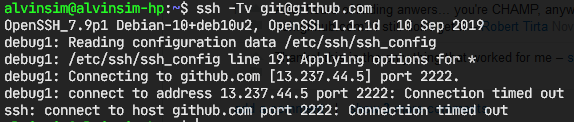
<p>Thanks.</p>]]></content><author><name>Alvin Sim</name></author><category term="hello" /><summary type="html"><![CDATA[Hey there, it's been a while! Here is a gist of what has happened to me and the website.]]></summary></entry><entry><title type="html">SSH Keys Suddenly Refused to Connect</title><link href="https://alvinsim.com/ssh-keys-suddenly-refused-to-connect" rel="alternate" type="text/html" title="SSH Keys Suddenly Refused to Connect" /><published>2020-11-29T19:16:00+00:00</published><updated>2020-11-29T19:16:00+00:00</updated><id>https://alvinsim.com/ssh-keys-suddenly-refused-to-connect</id><content type="html" xml:base="https://alvinsim.com/ssh-keys-suddenly-refused-to-connect"><![CDATA[<p>Strangely, my Debian system (<em>running on WSL</em>) suddenly refused to connect to both Gitlab and GitHub using my SSH keys. Everything was fine when I last used it a couple of weeks ago. But now running the command <code>ssh -Tv git@github.com</code> returns a "Connection timed out" error.</p>

<p><img src="/assets/images/ssh-github-fail.png" alt="img" /></p>

<p>And I didn't see the same issue using the same SSH keys on a Ubuntu system (<em>also running on WSL</em>) and Git Bash on Windows. So, there is no issues with my SSH keys.</p>

<p>I was very close to re-building my Debian system until I saw <a href="https://stackoverflow.com/a/52817036/265416">this Stack Overflow answer</a>. According to this Stack Overflow answer, which also has a link to one of GitHub's <a href="https://docs.github.com/en/free-pro-team@latest/github/authenticating-to-github/using-ssh-over-the-https-port">Troubleshooting SSH</a> article, most probably the firewall has refused the SSH connection.</p>

<blockquote>
  <p>Sometimes, firewalls refuse to allow SSH connections entirely. If using HTTPS cloning with credential caching is not an option, you can attempt to clone using an SSH connection made over the HTTPS port. Most firewall rules should allow this, but proxy servers may interfere</p>
</blockquote>

<p>A quick workaround is to change the <code>hostname</code> and port i.e. use port <code>443</code> and <code>hostname</code> <code>ssh.github.com</code> instead. To quickly test this, we can use the <code>ssh</code> command below.</p>

<p><img src="/assets/images/ssh-github-success.png" alt="img" /></p>

<p>The final touch would be to add the hostname and port to the <code>~/.ssh/config</code> file.</p>

<pre><code>Host github.com
  Hostname ssh.github.com
    Port 443

Host gitlab.com
  Hostname altssh.gitlab.com
    Port 443
</code></pre>

<p>With this in my SSH configuration file, I can now connect happily to GitHub and Gitlab.</p>

<p><img src="/assets/images/ssh-github-success-02.png" alt="img" /></p>]]></content><author><name>Alvin Sim</name></author><category term="archived" /><category term="git" /><category term="ssh" /><category term="ssh-keys" /><summary type="html"><![CDATA[Strangely, my Debian system (running on WSL) suddenly refused to connect to both Gitlab and GitHub using my SSH keys. Everything was fine when I last used it a couple of weeks ago. But now running the command ssh -Tv git@github.com returns a "Connection timed out" error.]]></summary></entry><entry><title type="html">Which ‘yarn’?</title><link href="https://alvinsim.com/which-yarn" rel="alternate" type="text/html" title="Which ‘yarn’?" /><published>2020-08-31T23:51:00+00:00</published><updated>2020-08-31T23:51:00+00:00</updated><id>https://alvinsim.com/which-yarn</id><content type="html" xml:base="https://alvinsim.com/which-yarn"><![CDATA[<p>This has happened to me each time I setup a new Debian or Ubuntu environment. Firstly, the <code>yarn</code> command I am referring to here is the JavaScript "Yarn" package manager. The <code>yarn</code> that was installed or already installed was the one used by the <a href="https://manpages.debian.https://manpages.debian.org/testing/cmdtest/yarn.1.en.html"><code>cmdtest</code></a>.</p>

<p>I thought I had <code>yarn</code> installed when I checked using the command <code>which yarn</code> and out printed <code>/usr/bin/yarn</code>.</p>

<pre><code>$ which yarn
/usr/bin/yarn
</code></pre>

<p>When I ran <code>yarn upgrade</code> I got this weird error message:</p>

<pre><code>~/src/a-javascript-project $ yarn upgrade
00h00m00s 0/0: : ERROR: [Errno 2] No such file or directory: 'upgrade'
</code></pre>

<p>This seemed strange. Why is <code>yarn</code> looking for a file or directory called 'upgrade'. Did I use the wrong option? Is it <code>upgrade</code> or <code>update</code>?</p>

<p>I checked the <code>yarn</code>'s <code>man</code> page to confirm and then saw the name and realised something is not right. It showed "yarn - scenario testing of Unix command-line tools".</p>

<p>At this point, it dawned on me that it's the wrong <code>yarn</code>!</p>

<p>This is a <a href="https://groups.google.com/forum/#!topic/linux.debian.devel/ceNMToPakhw">known issue</a> in Debian and Debian-based distros, like Ubuntu.</p>

<p>To fix this, we can't run the command <code>sudo apt remove yarn</code> because <code>yarn</code> is not a package. It belongs to the <code>cmdtest</code> package. So, we have to remove the <code>cmdtest</code> package instead and then only install the correct <code>yarn</code>, preferably using <code>npm install -g yarn</code>.</p>

<p>I hope this helps if you are also facing the same problem.</p>

<p>&#x2013;</p>]]></content><author><name>Alvin Sim</name></author><category term="archived" /><category term="debian" /><category term="javascript" /><category term="linux" /><category term="unix" /><category term="yarn" /><summary type="html"><![CDATA[This has happened to me each time I setup a new Debian or Ubuntu environment. Firstly, the yarn command I am referring to here is the JavaScript "Yarn" package manager. The yarn that was installed or already installed was the one used by the cmdtest.]]></summary></entry><entry><title type="html">It’s a Chocolatey Time</title><link href="https://alvinsim.com/its-a-chocolatey-time" rel="alternate" type="text/html" title="It’s a Chocolatey Time" /><published>2020-06-14T21:56:00+00:00</published><updated>2020-06-14T21:56:00+00:00</updated><id>https://alvinsim.com/its-a-chocolatey-time</id><content type="html" xml:base="https://alvinsim.com/its-a-chocolatey-time"><![CDATA[<p><img src="/assets/images/chocolatey-logo.png" alt="img" /></p>

<p><a href="https://chocolatey.org">Chocolatey</a> is a software or package management on Windows, similar to the <code>apt</code> command on Debian or Debian-based distributions. It'd be great if Windows has something similar built-in. This does make managing software so much easier.</p>

<p>I have used Chocolatey for many years, since 2016 or earlier, and it is always one of the first things I install on a new Windows system.</p>

<p>One of the main advantages of using Chocolatey and because it is a command-line-interface (<em>CLI</em>) power tool, is installations and upgrading of software can be automated. This means that you can now write a single <code>choco install</code>, <code>choco uninstall</code> or <code>choco upgrade</code> command in a Windows <code>.BAT</code> file and just sit back and wait for Chocolatey to do its thing. Or unfortunately, if you are not a CLI person, you can choose to install the <a href="https://github.com/chocolatey/ChocolateyGUI">chocolateGUI</a> and use that instead.</p>

<h1>Install Chocolatey</h1>

<p>To get started with Chocolatey, you'd first have to install it. Before starting, most importantly you'd need to make sure you have Administrator access to the Windows machine. If unfortunately, you don't, you can refer <a href="https://chocolatey.org/docs/installation#non-administrative-install">here</a> for the non-administrative installation steps.</p>

<p>You can refer to the installation steps in the Chocolatey <a href="https://chocolatey.org/install">installation page</a>. Basically, you will have to open PowerShell as an Administrator (<code>Win+x</code> <em>and select "Windows PowerShell (Admin)"</em>) and paste the below command into the shell and run it.</p>

<pre><code>Set-ExecutionPolicy Bypass -Scope Process -Force; [System.Net.ServicePointManager]::SecurityProtocol = [System.Net.ServicePointManager]::SecurityProtocol -bor 3072; iex ((New-Object System.Net.WebClient).DownloadString('https://chocolatey.org/install.ps1'))
</code></pre>

<p>If for some reason you encounter an error during this step, you can refer back to the installation page.</p>

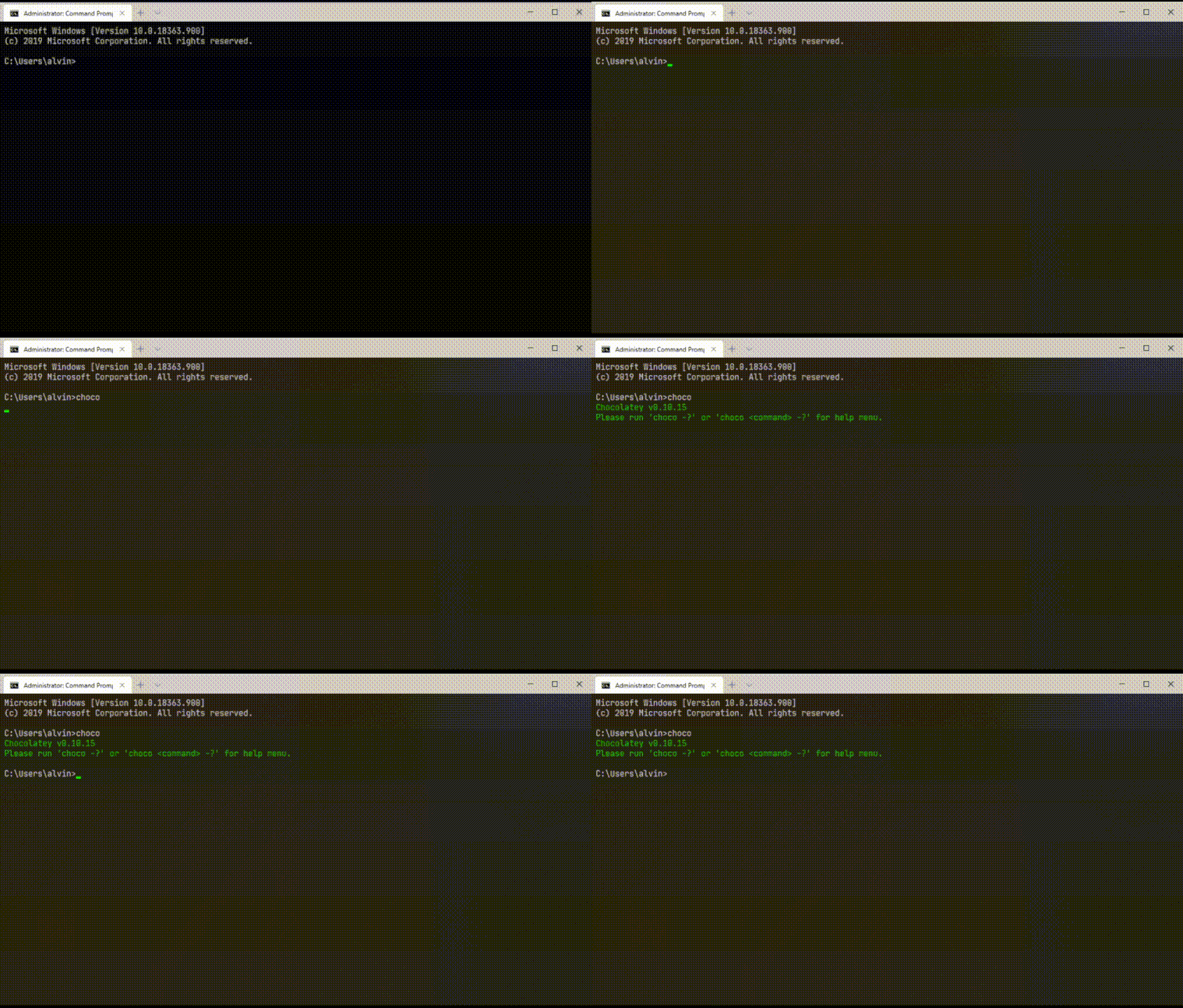
<p>After the installation has completed, you can run the command <code>choco</code> and it should output the Chocolatey version installed plus the Chocolatey command for the help menu, like below.</p>

<p><img src="/assets/images/choco.gif" alt="img" /></p>

<p>By default, Chocolatey is installed in <code>%PROGRAMDATA%</code> (<em>you can run <code>echo %PROGRAMDATA%</code> in the command prompt and see what path it is set to</em>) and the software that you install using Chocolatey are installed in <code>%PROGRAMDATA%\chocolatey\lib</code>.</p>

<h1>Let the fun begin!</h1>

<p>To begin using Chocolatey, You can choose either to use the "Command Prompt" or PowerShell and either one has to be run as Administrator.</p>

<h2><code>choco list</code></h2>

<p>There are two ways to search for software on Chocolatey – using the <code>choco list</code> command or via the Chocolatey website. For example, if I were to search for "sqlitebrowser", I'd run the command <code>choco list sqlitebrowser</code>. The output will be a list of software from the Chocolatey "repository" that is related to the word "sqlitebrowser". And you can do the same at the Chocolatey website by clicking on the "Search" at the top-right and type "sqlitebrowser".</p>

<p><img src="/assets/images/choco-list-sqlitebrowser.gif" alt="img" /></p>

<h2><code>choco install</code></h2>

<p>Once you have found the software or list of software to install, you can then run the <code>choco install</code> command. This command is expecting one or more names of software to install.</p>

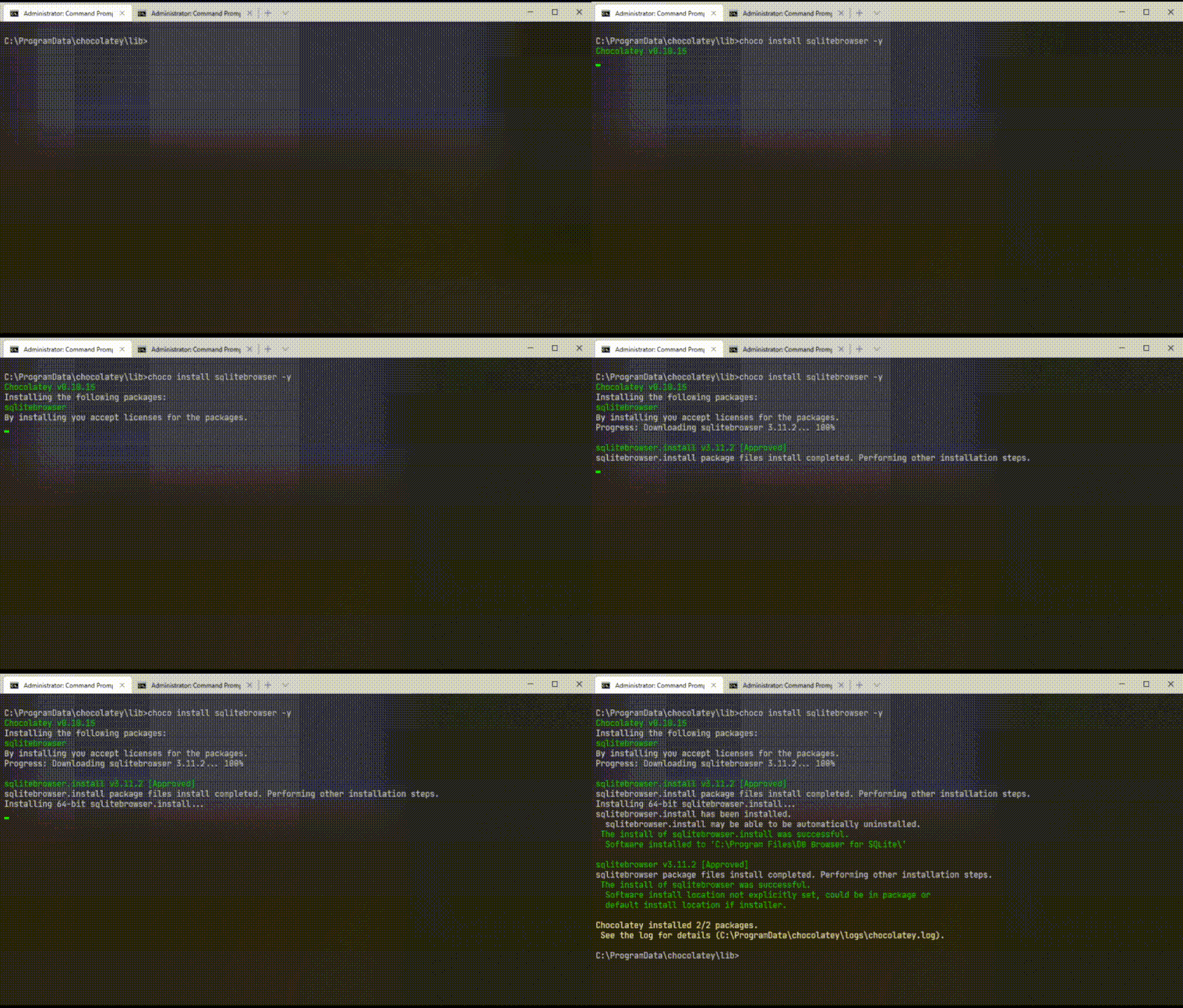
<p>Following the example above, if we want to install sqlitebrowser, we'd run the command <code>choco install sqlitebrowser</code>. After Chocolatey is done with the pre-installation steps, you'll then be prompted to enter "Y" ("Yes"), "A" ("All - yes to all"), "N" ("No") or "P" ("Print"). If you want Chocolatey to proceed with the installation without prompting, you can instead run the command <code>choco install sqlitebrowser -y</code>.</p>

<p><img src="/assets/images/choco-install-sqlitebrowser-y.gif" alt="img" /></p>

<p>One thing to note: When the installation depends on another software but it is not already installed in your Windows machine, Chocolatey will install all that is required. For a list of dependencies that software requires, you can see them on the Chocolatey website.</p>

<h2><code>choco upgrade</code></h2>

<p>The <code>choco upgrade</code> command can be used to upgrade a specific software or all software installed by Chocolatey.</p>

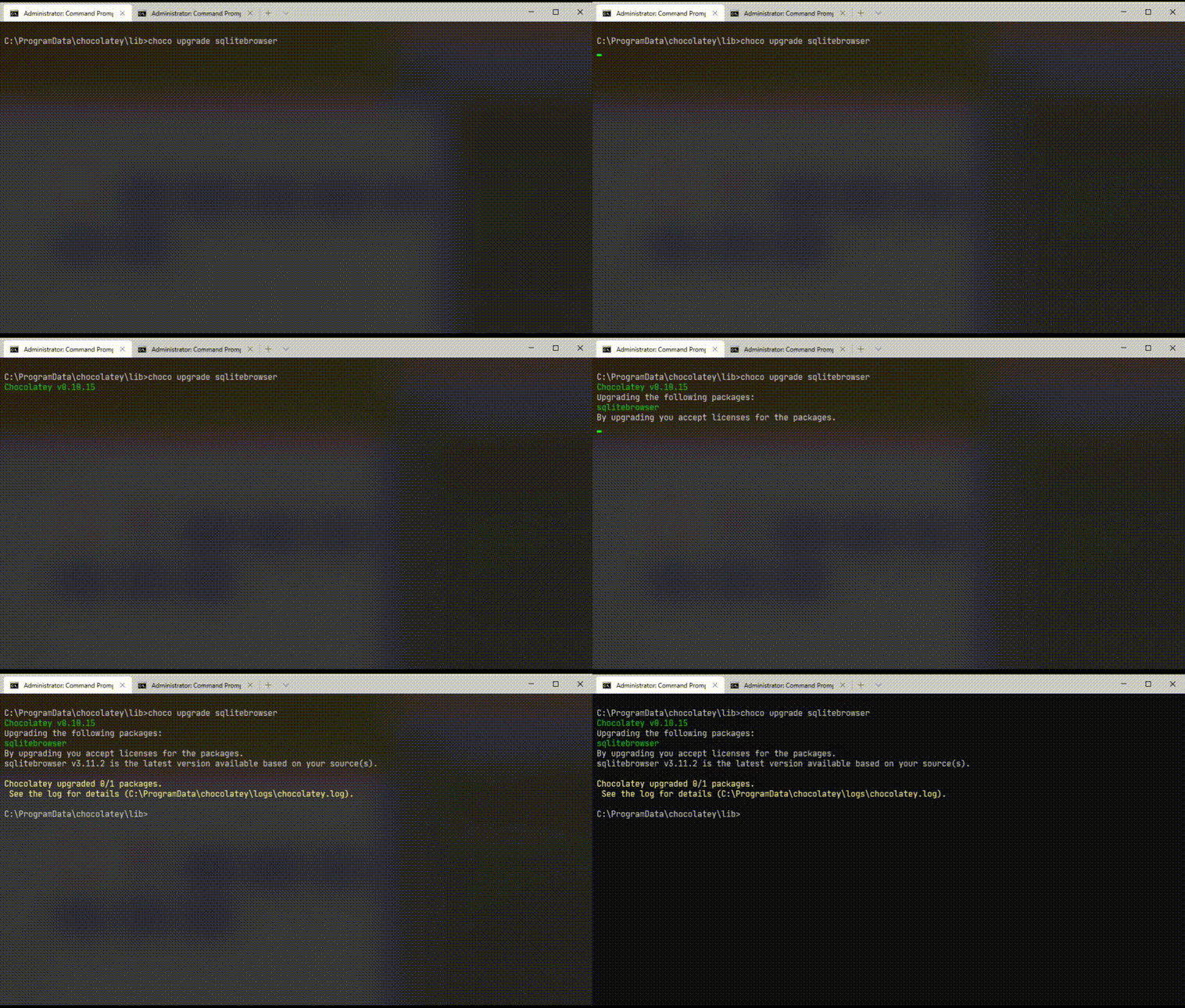
<p>To only upgrade, for example, sqlitebrowser, we can run the command <code>choco upgrade sqlitebrowser</code> or <code>choco upgrade sqlitebrowser -y</code> to skip the prompt similar to the <code>choco install</code> command.</p>

<p><img src="/assets/images/choco-upgrade-sqlitebrowser.gif" alt="img" /></p>

<p>To upgrade all software installed using Chocolatey, we can run the command <code>choco upgrade all -y</code>.</p>

<p>If for some reason you want to skip the upgrade for specific software, you can choose to either:</p>

<ul>
<li>Delete the software from the Chocolatey <code>bin</code> directory (<code>%PROGRAMDATA%\chocolatey\bin</code>).</li>
<li>Run the command <code>choco pin -n=SOFTWARE_NAME</code>, e.g. <code>choco pin -n=vlc</code>.</li>
<li>Or if you decide to only skip the upgrade for certain software for this time, you can run this example command <code>choco upgrade all --except="vlc,youtube-dl -y"</code>.</li>
</ul>

<h2><code>choco uninstall</code></h2>

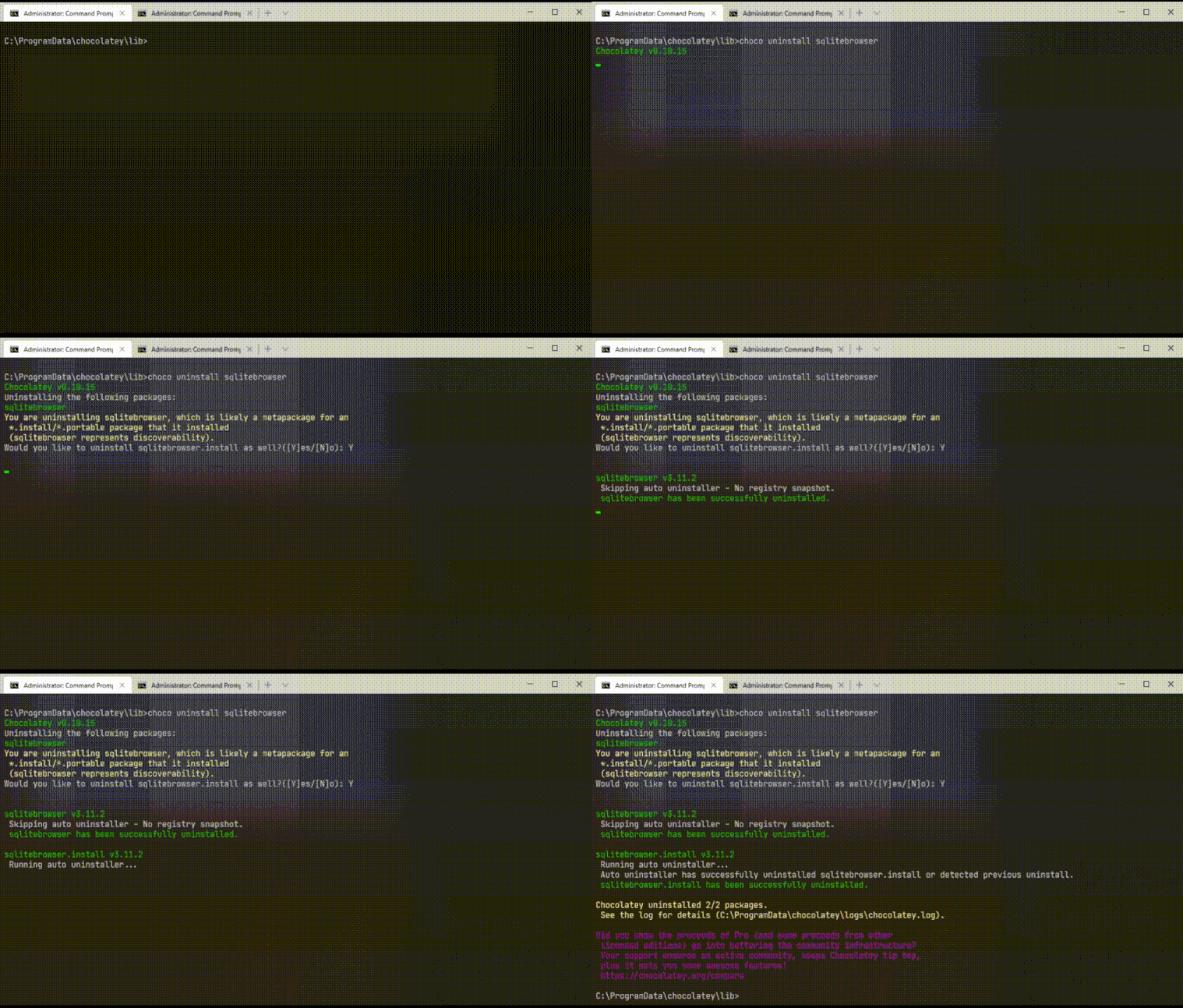
<p>To uninstall software, you can use the command <code>choco uninstall</code> and pass in the software name and also the <code>-y</code> option if you want to skip the prompt.</p>

<p><img src="/assets/images/choco-uninstall-sqlitebrowser.gif" alt="img" /></p>

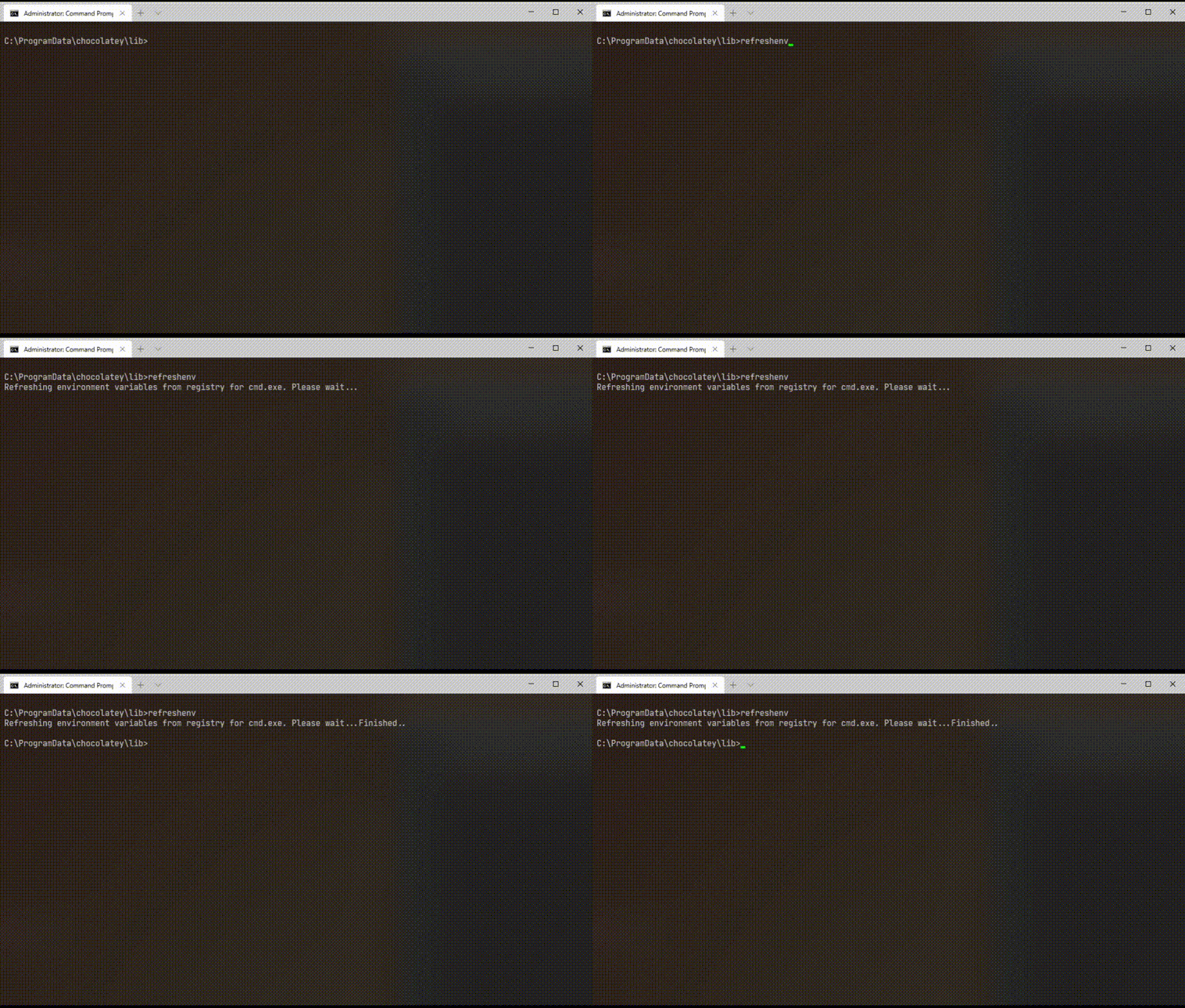
<h2><code>refreshenv</code></h2>

<p><code>refreshenv</code> is a very useful command and I do not see why something similar couldn't be baked into Windows.</p>

<p>This command is usually used when you install or uninstall software and it has made changes to the Windows environment variables.</p>

<p>In normal circumstances, you have to open a new Command Prompt or PowerShell window to see the updated Windows environment variables. But, by running <code>refreshenv</code>, it refreshes the environment variables in the current command prompt or PowerShell window.</p>

<p>Using it is similar to the <code>source</code> command in Unix systems.</p>

<p><img src="/assets/images/choco-refreshenv.gif" alt="img" /></p>

<h2>Remove Chocolatey</h2>

<p>If for some reason you no longer want to use Chocolatey anymore, you can delete the "chocolatey" folder in the <code>%PROGRAMDATA%</code> or wherever <code>%ChocolateyInstall%</code> is pointing to.</p>

<p>According to the <a href="https://chocolatey.org/docs/uninstallation">Uninstalling Chocolatey page</a>, it is also best to make a copy of the <code>lib</code> and <code>bin</code> sub-folders just in case something not right happens. I'd say, best to back up the <code>chocolatey</code> directory instead.</p>

<h1>Alternative to Chocolatey</h1>

<h2>Scoop</h2>

<p>I happened to stumble upon <a href="https://scoop.sh/">Scoop</a> that does the same as Chocolatey. I didn't give it a try but I noticed that more software projects are listing Scoop as part of their installation instructions in their documents.</p>

<p>You can see a list of supported software at <a href="https://github.com/ScoopInstaller/Main/tree/master/bucket">their GitHub repository</a>.</p>

<p>Do share your experience in the comments below if you are using it or have used it before.</p>

<h2>Windows Package Manager</h2>

<p>And here is another alternative and surprisingly it is from Microsoft – <a href="https://docs.microsoft.com/en-us/windows/package-manager/">Windows Package Manager</a>.</p>

<p>To install, you'll need to grab <a href="https://www.microsoft.com/en-au/p/app-installer/9nblggh4nns1?ocid=9nblggh4nns1_ORSEARCH_Bing&amp;rtc=2&amp;activetab=pivot:overviewtab">"Windows App Installer"</a> from the Microsoft Store. Your Windows will need to be at least Windows 10 version 14393.0 or higher.</p>

<p>Do note that this is still in preview. If you decide to install, do expect bugs, and most importantly, changes when updated preview versions are continuously rolled out.</p>

<p>You can see a list of supported software or packages in Microsoft's <a href="https://github.com/microsoft/winget-pkgs">winget-pkgs</a> GitHub repository.</p>

<h1>Conclusion</h1>

<p>Chocolatey has matured now and I rarely come across any issues. If one does happen, you can head up to the software's page in the Chocolatey website and see in the comments section if it is a known issue, otherwise, post a question and ask the software's maintainer.</p>

<p>I would definitely recommend Windows users to use Chocolatey, especially when you need to set up a new Windows machine. It has truly improved the experience of software management in Windows. The two advantages of using Chocolatey from my point-of-view are</p>

<ol>
<li>It is a CLI tool. So this helps a lot when you want to automate your software management.</li>
<li>It handles software dependencies.</li>
</ol>

<p>If this is new to you, do give this a try and let me know your thoughts.</p>

<p>–</p>]]></content><author><name>Alvin Sim</name></author><category term="archived" /><category term="windows" /><category term="chocolatey" /><summary type="html"><![CDATA[Chocolatey is a software or package management on Windows, similar to the apt command on Debian or Debian-based distributions. It'd be great if Windows has something similar built-in. This does make managing software so much easier.]]></summary></entry><entry><title type="html">2019 Podcast Shows I Enjoy Listening To</title><link href="https://alvinsim.com/2019-podcast-shows-i-enjoy-listening-to" rel="alternate" type="text/html" title="2019 Podcast Shows I Enjoy Listening To" /><published>2019-12-15T20:38:00+00:00</published><updated>2019-12-15T20:38:00+00:00</updated><id>https://alvinsim.com/2019-podcast-shows-i-enjoy-listening-to</id><content type="html" xml:base="https://alvinsim.com/2019-podcast-shows-i-enjoy-listening-to"><![CDATA[<p>I listen to podcasts because it is one of the ways I can learn something new. There was a quote from someone, from whom I can't remember, "Podcast is like a moving university". I will always have something to listen to when I am doing my chores, commute, having my walks or exercise, etc.</p>

<p>Below is a list of the podcast shows I enjoy listening to currently and they are ordered in no particular order. It's very different from the one I listened to when <a href="https://alvinsim.wordpress.com/2013/02/06/podcast-i-listen/">I wrote</a> about it last.</p>

<h2>1&#46; The Takeaway Table Podcast</h2>

<p><img src="/assets/images/podcasts-theTakeawayTablePodcast.jpg" alt="img" /></p>

<p>This show is hosted by the Ming brothers, Ming Han and Ming Yue. If you don't already know them, they are <a href="https://www.youtube.com/user/dmingthing">TheMingThing</a> at YouTube and I personally love their original series, especially <a href="https://www.youtube.com/watch?v=CQJ4Ia218f4&amp;list=PLkXcPfMf1r1JycCET2cmK13N69Bz_mh6e">The Delivery Boy</a>.</p>

<p>One of the reasons I like listening to this podcast is because they discuss a variety of topics ranging from depression, childhood pranks, K-pop, etc. Most of the time, they discuss these with a guest or two.</p>

<p>My favourite episode is <strong>#6 April Fool's &amp; Childhood pranks (ft. Melissa Campbell)</strong>. I just couldn't help laughing listening to their stories.</p>

<h3>Links</h3>

<ul>
<li><a href="https://podcasts.apple.com//podcast/the-takeaway-table-podcast/id1454480682">Apple Podcast</a></li>
<li><a href="https://www.youtube.com/playlist?list=PLze0QnCvJVwXK5WwXAnLq2Xq52UxyGYA-">YouTube</a></li>
<li><a href="https://open.spotify.com/show/0vesb2drFmZgMrHp3vd0uB">Spotify</a></li>
</ul>

<h2>2&#46; The James Altucher Show</h2>

<p>One reason I like this podcast is because of the stories, stories of how his guests succeed in their life. And you can hear James's side of the story as well on his failed marriages, failed business ventures, going bankrupt, etc. James has a very interesting way when it comes to interviewing his guests. If you'd notice, he always interrupts his guests. And this is for the good actually because his guest has said something which triggered a thought in him and he wants them to elaborate more on it.</p>

<p>It is from James Altucher where I learnt two things – to always choose yourself, and learn from mistakes. Not only your mistakes but also from other people's mistakes. One way is from reading books and also listening to podcasts like this one.</p>

<h3>Links</h3>

<ul>
<li><a href="https://jamesaltucher.com/podcasts/">Website</a></li>
<li><a href="https://podcasts.apple.com/us/podcast/the-james-altucher-show/id794030859">Apple Podcast</a></li>
<li><a href="https://www.youtube.com/channel/UCRQlx2klE_aNrPhz2OyKRdg">YouTube</a></li>
</ul>

<h2>3&#46; defn</h2>

<p><img src="/assets/images/podcasts-defn.jpg" alt="img" /></p>

<p>I have been playing and reading about Clojure and defn is the first Clojure podcast I listen to. This podcast is hosted by <a href="http://vijaykiran.com/">Vijay Kiran</a> and Ray McDermott and it is the world's greatest vegetarian Clojure podcast, or so they claim.</p>

<h3>Links</h3>

<ul>
<li><a href="https://soundcloud.com/defn-771544745">Soundcloud</a></li>
<li><a href="https://podcasts.apple.com/us/podcast/defn/id1114899563">Apple Podcasts</a></li>
</ul>

<h2>4&#46; No Guitar is Safe</h2>

<p><img src="/assets/images/podcasts-noGuitarIsSafe.jpg" alt="img" /></p>

<p><a href="http://judegold.com/">Jude Gold</a>, besides being the host of this podcast, is also the lead guitarist for Jefferson Starship and an editor for Guitar Player magazine. He interviews great guitarist across all genres, including bass players. If I am not mistaken, he interviewed two of the greatest bass players in this podcast, Billy Sheehan and Stuart Ham.</p>

<p>I like listening to this podcast because he doesn't only interviews them but also jams with them. It's one of the podcasts where I listen at normal speed. The others I usually listen at 2x speed.</p>

<h3>Links</h3>

<ul>
<li><a href="https://soundcloud.com/guitar-player-magazine">SoundCloud</a></li>
<li><a href="https://player.fm/series/no-guitar-is-safe">PlayerFM</a></li>
<li><a href="https://www.stitcher.com/podcast/revolver-magazine/no-guitar-is-safe">Stitcher</a></li>
<li><a href="https://tunein.com/podcasts/Music-Talk/No-Guitar-Is-Safe-p767771/">TuneIn</a></li>
<li><a href="https://podcasts.apple.com/us/podcast/no-guitar-is-safe/id1020669587">Apple Podcasts</a></li>
</ul>

<h2>5&#46; The Mindvalley Podcast</h2>

<p><img src="/assets/images/podcasts-mindvalley.png" alt="img" /></p>

<p><a href="https://mindvalley.com/">Mindvalley</a> is a company which focuses on personal growth and it is founded by Vishen Lakhiani.</p>

<p>Before I started listening to their podcast, I have already heard of them. They have an office in Malaysia and <a href="https://says.com/my">Says</a> has <a href="https://says.com/my/lifestyle/best-company-culture-malaysia">listed Mindvalley</a> (<em>at no. 4</em>) as "Malaysian companies with awesome workplace culture".</p>

<p>After I started following Mindvalley and also Vishen, I continued doing meditation again and started to learn more about its importance. Before this, I started meditation when I was around 15 and it was a type of visualisation meditation. I used it, especially when preparing for exams. After school, I stopped meditation until recently when I hit the lowest point in my life, roughly after 25 years. It was Vishen's <a href="https://www.youtube.com/watch?v=EaRu14P9H84">The Six Phase Meditation</a> that got me started on the meditation again and helped me.</p>

<p>If there is one podcast I'd recommend, it would be the Mindvalley podcast hosted by Vishen himself. He interviews interesting people and speaks on amazing topics. My favourites are <a href="https://soundcloud.com/user-692283923-293518318/emily-fletcher-on-the-3-ms-how">Emily Fletcher on the 3 M's: How mindfulness, meditation and manifesting can improve our life</a> and <a href="https://soundcloud.com/user-692283923-293518318/adam-roa-on-how-to-find-the">Adam Roa on how to find the perfect relationship</a>.</p>

<h3>Links</h3>

<ul>
<li><a href="https://open.spotify.com/show/33x8LqNwzBthoVa3im6NdO?si=cVrg5sV0RlqEguDtigNPIA">Spotify</a></li>
<li><a href="https://soundcloud.com/user-692283923-293518318">Soundcloud</a></li>
<li><a href="https://www.mindvalley.com">Website</a></li>
<li><a href="https://www.youtube.com/mindvalley/">YouTube</a></li>
</ul>

<h2>6&#46; Music Related Shows from BFM - Wavelength, Into the Blue, The Flow, Take Five, 33RPM, Very Noise, Muddy Confluence Musical Companion</h2>

<p><img src="/assets/images/bfm-logo.jpg" alt="img" /></p>

<p>One reason I listen to these shows is to discover new music, the music we do not often listen to on the radio. Because of these shows, I started listening and following great musicians like <a href="https://www.thevenopiansolitude.com/">The Venopian Solitude</a>, <a href="https://www.youtube.com/user/wherewascharlie">Charlie Lim</a>, <a href="https://www.youtube.com/channel/UCUXsAnSwGqc1uEvlOBz2GBA">Mocca</a>, <a href="http://badbadnotgood.com/">BadBadNotGood</a>, <a href="https://www.youtube.com/channel/UCBywlDxyIrjDqhE0U3zZvig">Payung Teduh</a>, <a href="https://www.kyotoband.com/">Kyoto Protocol</a>, <a href="https://www.youtube.com/channel/UCqss9YQhKnV_1ekC347ckDw">Phum Viphurit</a>, <a href="https://www.youtube.com/drghy">Dirgahayu</a>, etc.</p>

<p>You can listen to them live via the website or on the radio at 89.9 FM (Malaysia only) on Saturdays (6 PM) and Sundays (7 PM).</p>

<p>Unfortunately, Very Noise and Muddy Confluence Musical Companion has been discontinued.</p>

<h3>Links</h3>

<ul>
<li><a href="https://www.bfm.my/">website</a></li>
</ul>

<h2>BONUS: Blinkist</h2>

<p><img src="/assets/images/podcasts-blinkist.png" alt="img" /></p>

<p><a href="https://www.blinkist.com/">Blinkist</a> is one of the fun ways to read non-fiction books. It summarises the books into small parts that they call blinks. You can choose to either read or listen to the blinks. With a paid subscription, you'll have unlimited access to the books. But, if you are like me, I am content with the free plan. It gives me one free book to read or listen to a day.</p>

<h1>Conclusion</h1>

<p>I find listening to a podcast is way better than listening to crap radio programs filled with nonsense content and advertisements all the time. To get started, pick a genre you like, e.g. comedy, self-help, music, etc. Then, download a podcast app on your phone and start searching. You never know what you learn today will benefit you in the future.</p>]]></content><author><name>Alvin Sim</name></author><category term="archived" /><category term="podcast" /><summary type="html"><![CDATA[I listen to podcasts because it is one of the ways I can learn something new. There was a quote from someone, from whom I can't remember, "Podcast is like a moving university". I will always have something to listen to when I am doing my chores, commute, having my walks or exercise, etc.]]></summary></entry><entry><title type="html">A Better Web Experience with the Keyboard</title><link href="https://alvinsim.com/a-better-web-experience-with-the-keyboard" rel="alternate" type="text/html" title="A Better Web Experience with the Keyboard" /><published>2019-07-29T19:57:00+00:00</published><updated>2019-07-29T19:57:00+00:00</updated><id>https://alvinsim.com/a-better-web-experience-with-the-keyboard</id><content type="html" xml:base="https://alvinsim.com/a-better-web-experience-with-the-keyboard"><![CDATA[<p>When I use a computer, I like to have both hands on the keyboard, or specifically on the <a href="https://www.dictionary.com/browse/home-row">home row</a>. I find that it is more productive than having to move them to grab the mouse every few seconds. This is one reason I am grateful for</p>

<ul>
<li>Software with great keyboard shortcuts and also that are easily customisable.</li>
<li>Terminal (or terminal emulator) and command prompt which you do not really need to use the mouse.</li>
<li>Websites with great keyboard shortcuts support like <a href="https://mail.google.com">Gmail</a>, <a href="https://www.rememberthemilk.com/">Remember The Milk</a>, <a href="https://duckduckgo.com">DuckDuckGo</a>, etc.</li>
<li>Lenovo ThinkPad laptops with the strategically placed Trackpoint and I like their keyboards too.</li>
</ul>

<p>The main focus of this article is about website navigation with the keyboard.</p>

<p>Making a website keyboard accessible or compatible is one of the aspects of web accessibility. Unfortunately, most websites and web applications are built with minimal keyboard support and rely a lot on the mouse. The usual supported keyboard navigation in web browsers are the <code>&lt;Tab&gt;</code>, <code>Alt</code> <code>&lt;Left/Right Arrow&gt;</code>, <code>&lt;Enter&gt;</code>, <code>&lt;Space&gt;</code>, <code>Shift</code> <code>&lt;Space&gt;</code>, <code>Ctrl</code> <code>&lt;TAB&gt;</code>, etc. These are fine. But imagine if you had to open a link and your mouse or trackpad refuses to work properly and the link is 20 <code>&lt;Tab&gt;</code> s away. Or, you have to fill in some details into a complicated web form.</p>

<h1>There is an extension (add-on) for that</h1>

<p><img src="/assets/images/sakakey-logo_with_title.png" alt="img" /></p>

<p>There is a web browser extension or add-on which improves the user experience of navigating a website using a keyboard and it is called <a href="https://key.saka.io/docs/about/introduction">Saka Key</a>.</p>

<p>I stumbled upon this when I was searching on the internet on how to change one of Firefox's keyboard shortcut, which was the <code>/</code>. In one of the previous versions of Firefox, this key was mapped to the <code>Ctrl</code> <code>f</code> or "Find" command. And coincidentally, it is also the key which <a href="https://duckduckgo.com">DuckDuckGo</a> uses to have the cursor focus on the "Search" input field. So, that was a bit annoying for me.</p>

<p>Unfortunately, I couldn't find any help topics or documentation or anywhere inside Firefox's settings on how to change its default keyboard shortcuts. But, one search result pointed to this browser extension.</p>

<p><img src="/assets/images/sakaKey.png" alt="img" /></p>

<p>What Saka Key does is quite unique. Besides providing a default and configurable list of keyboard shortcuts, it also finds links and other interactive HTML elements in the web page and assigns random keymaps to them. You can see the keymaps highlighted in the screen capture above. To toggle the keymaps, press the <code>ff</code> key. To hide them, press the <code>&lt;ESC&gt;</code> key. Once the keymaps are displayed, you can then hit the specific letter to go to the link or focus on a form element.</p>

<p>Saka Key is an <a href="https://github.com/lusakasa/saka-key">open source project</a> and supports both Firefox and Chrome, including Chromium-based web browsers like Brave, Vivaldi, Opera, etc.</p>

<p>Here are some of its keyboard shortcuts that I often use.</p>

<ul>
<li><strong><code>ff</code>:</strong> Open link in the current tab.</li>
<li><strong><code>fb</code>:</strong> Open link in a background tab.</li>
<li><strong><code>fi</code>:</strong> Focus cursor on a form element.</li>
<li><strong><code>i</code> or <code>o</code>:</strong> Move the tab to the left/right.</li>
<li><strong><code>w</code> or <code>q</code>:</strong> Go to the next/previous tab.</li>
<li><strong><code>cc</code> or <code>vv</code>:</strong> Go back/forward based on your browser's history.</li>
<li><strong><code>rr</code>:</strong> Reload the tab.</li>
<li><strong><code>j</code> or <code>k</code>:</strong> Scroll up or down.</li>
<li><strong><code>Shift</code> <code>j</code> or <code>Shift</code> <code>k</code>:</strong> Scroll half page up or down.</li>
<li><strong><code>gg</code>:</strong> Scroll to the top.</li>
<li><strong><code>Shift</code> <code>g</code>:</strong> Scroll to the bottom.</li>
</ul>

<p>If you haven't noticed, they are quite similar to vim's key bindings.</p>

<p>Users also have the option to change the keyboard shortcuts or delete them. And there are options to import or export your settings.</p>

<p>There is also a blacklist section for users to specific websites which they do not want to use Saka Key on. For me, I have Gmail in the blacklist as my fingers are already accustomed to its default keyboard shortcuts.</p>

<h1>Conclusion</h1>

<p>To me, Saka Key is a great browser extension or add-on to have, especially when we use the web browser most of the time, for work and leisure. There are times when we do need to use the mouse such as to draw diagrams, drag-and-drop things, games, interacting with annoying i-am-not-a-robot CAPTCHAs to click on busses, storefronts, pedestrian crossings, traffic lights, etc. But with just the keyboard, you'd start to notice you get more work done and quicker.</p>

<p>–</p>]]></content><author><name>Alvin Sim</name></author><category term="archived" /><category term="chrome" /><category term="firefox" /><category term="keyboad" /><category term="productivity" /><category term="web" /><summary type="html"><![CDATA[When I use a computer, I like to have both hands on the keyboard, or specifically on the home row. I find that it is more productive than having to move them to grab the mouse every few seconds. This is one reason I am grateful for]]></summary></entry><entry><title type="html">Git Status in Your Prompt</title><link href="https://alvinsim.com/git-status-in-your-prompt" rel="alternate" type="text/html" title="Git Status in Your Prompt" /><published>2019-06-25T20:35:00+00:00</published><updated>2019-06-25T20:35:00+00:00</updated><id>https://alvinsim.com/git-status-in-your-prompt</id><content type="html" xml:base="https://alvinsim.com/git-status-in-your-prompt"><![CDATA[<p>Did you know: You can have a visual representation of the <code>git status</code> command output in your shell prompt? This is especially convenient for people who use the <code>git</code> command-line interface (<em>CLI</em>). Unfortunately, this doesn't work with the Windows command prompt or <code>cmd</code>. But there are a few workarounds.</p>

<h1><code>git-prompt.sh</code></h1>

<blockquote>
  <p>Disclaimer: For this part of the article, I will show the how-tos by using Debian (on Windows Subsystem for Linux or WSL) and FreeBSD as examples. These are the Unix-like systems that I have access to currently. For other systems or Linux distros, the steps should be the same except for the location or name of the <code>git-prompt.sh</code> file.</p>
</blockquote>

<p>When <code>git</code> is installed in a Unix-like system, it usually comes with the script file <code>git-prompt.sh</code>. The location and file name of this file may differ depending on the type of system or distro you use.</p>

<h2>Locating the Script File</h2>

<p>In FreeBSD, this shell script is located in <code>/usr/local/share/git-core/contrib/completion/</code>.</p>

<p>It is a bit different for Debian and/or Debian-based distros. The script file you should look for is <code>git-sh-prompt</code>. I believe it is similar to <code>git-prompt.sh</code> only with a different name. This file can be found in <code>/usr/lib/git-core/</code>.</p>

<h2>Setting It Up</h2>

<p>It is documented very clearly in the script file on how to use it and the instruction is for both <code>bash</code> and <code>zsh</code> shells. The instruction also states the different flags you can toggle depending on the information you want displayed in the shell prompt.</p>

<p>Firstly, copy this script file to your home directory and rename it to <code>.git-prompt.sh</code>.</p>

<pre><code># FreeBSD
$ cp /usr/local/share/git-core/contrib/completion/git-prompt.sh ~/.git-prompt.sh

# Debian
$ cp /usr/lib/git-core/git-sh-prompt ~/.git-prompt.sh
</code></pre>

<p>Next, you'll need to configure your shell, <code>bash</code> or <code>zsh</code>, to <code>source</code> the <code>~/.git-prompt.sh</code> file. To do that, add the code snippet below to either the <code>~/.bashrc</code> or <code>~/.zshrc</code> file.</p>

<pre><code>source ~/.git-prompt.sh
</code></pre>

<p>This step is different for FreeBSD users because <a href="https://serverfault.com/questions/174251/system-wide-bashrc-on-freebsd">it doesn't have neither a <code>~/.bashrc</code> nor a global <code>bashrc</code> file</a>. Instead, you can do the same with the <code>~/.profile</code> file.</p>

<p>The next fun thing to do is to configure the information you want to show in your shell prompt. The flags available are:</p>

<ul>
<li><code>GIT_PS1_SHOWDIRTYSTATE</code></li>
<li><code>GIT_PS1_SHOWSTASHSTATE</code></li>
<li><code>GIT_PS1_SHOWUNTRACKEDFILES</code></li>
<li><code>GIT_PS1_SHOWUPSTREAM</code></li>
<li><code>GIT_PS1_STATESEPARATOR</code></li>
<li><code>GIT_PS1_DESCRIBE_STYLE</code></li>
<li><code>GIT_PS1_HIDE_IF_PWD_IGNORED</code></li>
<li><code>GIT_PS1_SHOWCOLORHINTS</code></li>
</ul>

<p>I will not go into detail what each flag means or the different values to enable them because it is clearly documented in the <code>git-prompt.sh</code> script file. Have a read and play with the flags to see what suits you.</p>

<p>As a reference, you can refer to the code snippet below on the flags I have configured for my setup.</p>

<pre><code>export GIT_PS1_SHOWDIRTYSTATE=1
export GIT_PS1_SHOWSTASHSTATE=1
export GIT_PS1_SHOWUPSTREAM="auto"
export GIT_PS1_SHOWCOLORHINTS=1
export GIT_PS1_HIDE_IF_PWD_IGNORED=1
export GIT_PS1_SHOWUNTRACKEDFILES=1
</code></pre>

<p>Finally, with all of that done, we have to update <code>$PS1</code> to show the necessary information from <code>git status</code> based on the flags we have enabled in the step above.</p>

<p>There are two ways to do this. Below is an example to do it either ways. Add either one of the code below to your <code>~/.bashrc</code>, <code>~/.zshrc</code> or <code>/.profile</code> file.</p>

<pre><code># Method 1
export PS1='\u@\h \w$(__git_ps1 " (%s)") \$'

# Method 2
export PROMPT_COMMAND='__git_ps1 "=\u@\h:\w" "\\\$ "'
</code></pre>

<p>Save your changes and run <code>source ~/.bashrc</code> (or <code>/.zshrc</code> or <code>/.profile</code>). Go to one of your local git repositories and you'll see something like below.</p>

<pre><code># Examples of 'git status' output in the shell prompt
# ===================================================
#
# Current branch is on 'master' and is sync with upstream or 'origin/master'
alvinsim@beastie:~$ ~/src/dotfiles (master=) $

# Current branch is on 'master' and one or more new/untracked files has been added
alvinsim@beastie:~$ ~/src/dotfiles (master %=) $

# Current branch is on 'master' and one or more files are modified
alvinsim@beastie:~$ ~/src/dotfiles (master *=) $

# Current branch is on 'master' and one or more files are staged for commit
alvinsim@beastie:~$ ~/src/dotfiles (master +=) $

# Current branch 'master' is one or more commits ahead of 'origin/master' or upstream
alvinsim@beastie:~$ ~/src/dotfiles (master&gt;) $

# Current branch 'master' is one or more commits behind of 'origin/master' or upstream
alvinsim@beastie:~$ ~/src/dotfiles (master&lt;) $
</code></pre>

<p>You can refer to the full code snippet below. You should have something similar.</p>

<pre><code># change value of PS1 to show git status of a git repo
source ~/.git-prompt.sh
export GIT_PS1_SHOWDIRTYSTATE=1
export GIT_PS1_SHOWSTASHSTATE=1
export GIT_PS1_SHOWUPSTREAM="auto"
export GIT_PS1_SHOWCOLORHINTS=1
export GIT_PS1_HIDE_IF_PWD_IGNORED=1
export GIT_PS1_SHOWUNTRACKEDFILES=1
#export PS1='\u@\h \w$(__git_ps1 " (%s)") \$ '
export PROMPT_COMMAND='__git_ps1 "\u@\h:\w" "\\\$ "'
</code></pre>

<h1>Without <code>git-prompt.sh</code></h1>

<p>If you are not able to locate the <code>git-prompt.sh</code> script file, or it didn't come as part of the <code>git</code> installation, you can download it from git's <a href="https://github.com/git/git/tree/master/contrib/completion">Github repository</a>.</p>

<h1>On Windows?</h1>

<p>As far as I know, there are two ways to achieve this ― Git Bash and PowerShell.</p>

<h2>Git Bash</h2>

<p><img src="/assets/images/git-bash.png" alt="img" /></p>

<p>Download the <code>git</code> setup file for Windows from <a href="https://git-scm.com">https://git-scm.com</a> or <a href="https://gitforwindows.org">https://gitforwindows.org</a> and run it. Personally, I prefer to use <a href="https://chocolatey.org">Chocolatey</a>, a package manager for Windows, to install <code>git</code> by running the command <code>choco install git -y</code>.</p>

<p><code>git</code> for Windows comes with something extra called Git BASH. It is a BASH emulator where you can run the <code>git</code> command just like you would on a Unix-like system. You'll also have all the common Unix commands at your disposal. Yeah, it is something similar to <a href="https://www.cygwin.com">Cygwin</a>.</p>

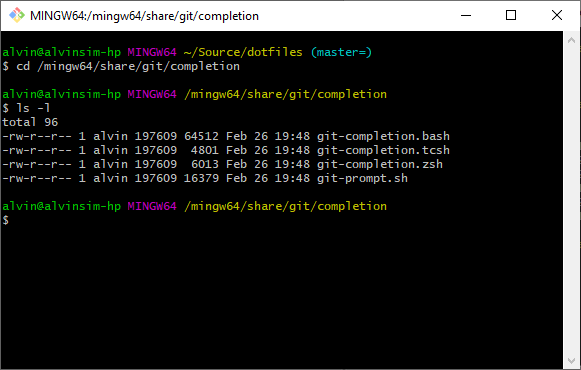
<p>In Git BASH, the <code>git-prompt.sh</code> file is located in <code>/mingw64/share/git/completion/</code>.</p>

<h2>PowerShell</h2>

<p>For those who do not prefer to use BASH, another option is to use Windows PowerShell. There is a PowerShell module called <a href="https://github.com/dahlbyk/posh-git">posh-git</a>. You can follow the installation instructions as stated in the <code>README.md</code> file. I am sorry that I can't provide a step-by-step guide here because I am not familiar with PowerShell and the instructions didn't work for me.</p>

<h1><code>__git_ps1: command not found</code></h1>

<p>If for some unknown reason you see the message <code>__git_ps1: command not found</code>, this basically means that the shell is not a login shell. You can refer to <a href="https://unix.stackexchange.com/questions/38175/difference-between-login-shell-and-non-login-shell#46856">this answer at Unix &amp; Linux Stack Exchange</a> for more clarity.</p>

<p>I encountered this once in my FreeBSD system when using <a href="https://github.com/tmux/tmux/wiki">tmux</a>. The <code>bash</code> shell was not started as a login shell. Thus, the shell ignored the <code>~/.profile</code> file.</p>

<h1>Wrapping Up</h1>

<p>I hope that you find this article useful especially if you use <code>git</code> in the terminal a lot in a Unix-like system or some kind of emulator. If you have a simple guide on how to set this up for PowerShell and don't mind sharing, I will link it here.</p>

<p>–</p>]]></content><author><name>Alvin Sim</name></author><category term="archived" /><category term="bash" /><category term="git" /><category term="linux" /><category term="unix" /><category term="zsh" /><summary type="html"><![CDATA[Did you know: You can have a visual representation of the git status command output in your shell prompt? This is especially convenient for people who use the git command-line interface (CLI). Unfortunately, this doesn't work with the Windows command prompt or cmd. But there are a few workarounds.]]></summary></entry><entry><title type="html">Why Not DuckDuckGo?</title><link href="https://alvinsim.com/why-not-duckduckgo" rel="alternate" type="text/html" title="Why Not DuckDuckGo?" /><published>2019-02-16T10:43:00+00:00</published><updated>2019-02-16T10:43:00+00:00</updated><id>https://alvinsim.com/why-not-duckduckgo</id><content type="html" xml:base="https://alvinsim.com/why-not-duckduckgo"><![CDATA[<p><img class="aligncenter" src="/assets/images/DuckDuckGo-Logo-Vertical.png" alt="img" /></p>

<p><a href="https://duckduckgo.com">DuckDuckGo</a> is a privacy-first search engine which doesn't track you. I started using it as my primary search engine in 2011. Below is my first tweet about DuckDuckGo. In the tweet, I shared an article on an interview (2012) by TechSpot with DuckDuckGo's founder, Gabriel Weinberg.</p>

<blockquote class="twitter-tweet" data-lang="en">
  <p dir="ltr" lang="en">
    I've used duckduckgo for more than a year &amp; it's AWESOME. It is currently the default search engine in all my browsers <a href="http://t.co/Dngw2s9d">http://t.co/Dngw2s9d</a>
  </p> — Alvin Sim (@alvinsim)

  <a href="https://twitter.com/alvinsim/status/238873381863297024?ref_src=twsrc%5Etfw">August 24, 2012</a>
</blockquote>

<p><script async="" src="https://platform.twitter.com/widgets.js" charset="utf-8"></script> My reason for using DuckDuckgo is I do not want search engines to track me by the things I search. And DuckDuckGo is one of the best alternatives. I am able to find things using DuckDuckGo more often than not. <a href="https://www.bing.com/">Bing</a>? Meh.</p>

<p>If you go to their website and scroll down, you'll notice that DuckDuckGo is all about protecting your privacy — "No tracking, no ad targeting, just searching."</p>

<p>I have DuckDuckGo set as my default search engine in all the web browsers I use – Vivaldi, Firefox, Edge and Safari.</p>

<p>Below is a list of features I use often.</p>

<ol>
<li><p><strong>Bangs!</strong> Bangs! are commands to tell DuckDuckgo to search on a specific website. The ones I use most of the time is <code>w!</code> (Wikipedia). The others are <code>ddgi!</code> (DuckDuckGo Images), <code>g!</code> (Google), and <code>gi!</code> (Google Images). It is only when I can't find anything relevant in DuckDuckGo then I have to revert to Google. To find out more about the "Bangs!", check-out their <a href="https://duckduckgo.com/bang">Bang! page</a>. For example, let's see what <a href="https://www.wikipedia.org/">Wikipedia</a> has to say about my home country, "Malaysia". In the DuckDuckGo search box, type "Malaysia !w" and hit <code>&lt;Enter&gt;</code>. You'll be directed to the Malaysia page in Wikipedia.</p></li>
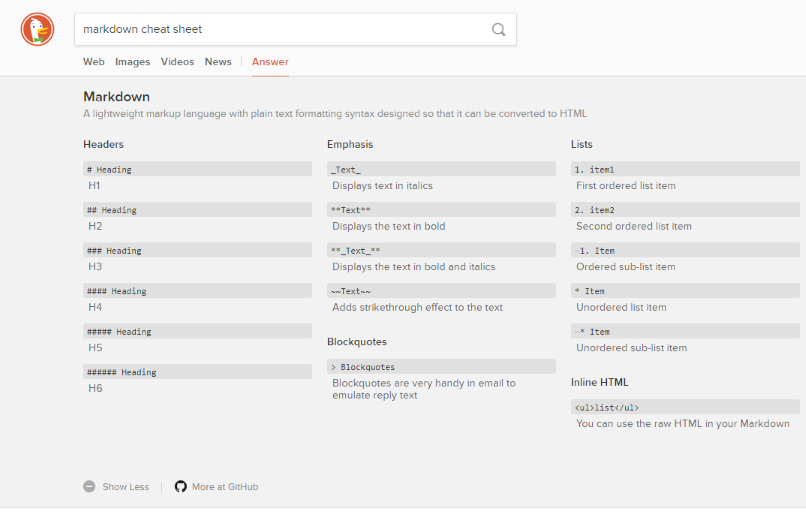
<li><p><strong>Cheat Sheets</strong>. There are occasions when I write in <a href="https://en.wikipedia.org/wiki/Markdown">Markdown</a>, or use <a href="http://www.vim.org/">Vim</a> or <a href="https://github.com/tmux">tmux</a>, I will need to refer to a cheat sheet. With DuckDuckGo, it will display the cheat sheet right above the search result. For example to view the cheat sheet for markdown, use the search term "markdown cheat sheet". <img class="aligncenter" src="/assets/images/duckduckgo-cheatsheet.png" alt="img" /></p></li>
<li><p><strong>Instant Answers (<em>or zeroclickinfo</em>)</strong>. Instant Answers are snippets of information which are displayed on the top-right of the search result. This helps especially when the result is relevant to the things I am searching. So there is no need to click any other results or scroll through the search results. From <a href="https://en.wikipedia.org/wiki/DuckDuckGo">DuckDuckGO's Wikipedia article</a>, "Instant Answers are collected from 3rd party APIs or static data sources like text files". So far from what I observed, the Instant Answers are from <a href="https://www.wikipedia.org">Wikipedia</a>, Java docs (<em>from Oracle</em>), MDN Web Doc or the accepted answer from a <a href="https://stackoverflow.com">Stackoverflow</a> question. <img class="aligncenter" src="/assets/images/duckduckgo-wikipediaSnippet.png" alt="img" /></p></li>
<li><p><strong>Keyboard Shortcuts</strong>. There are keyboard shortcuts to make navigating DuckDuckgo easier. They are similar to vi(m)'s. Even Gmail uses similar shortcuts. For a full list of supported keyboard shortcuts, you can refer to <a href="https://duck.co/help/features/keyboard-shortcuts">https://duck.co/help/features/keyboard-shortcuts</a>. The ones I normally use are:</p>

<ul>
<li><code>/</code> — Cursor focus on the search box. If you are using Firefox, this doesn't work because Firefox has mapped <code>/</code> to their "Find" which is also <code>Ctrl+f</code>. Unfortunately, there is no way to change this in Firefox. </li>
<li><code>j</code> or <code>↓</code> — Go down the search result list. </li>
<li><code>k</code> or <code>↑</code> — Go up the search result list. </li>
</ul></li>
</ol>

<p>Although one may argue that Google's search results are better. But for me, DuckDuckGo's search results have been good thus far, if not better. For other DuckDuckGo features which are not listed here, you can explore them at their <a href="https://duck.co/help/features">features</a> page.</p>

<p>If you have not heard of DuckDuckGo nor try it, now is the time to give it a go. And let me know what you think?</p>

<p>––</p>]]></content><author><name>Alvin Sim</name></author><category term="archived" /><category term="duckduckgo" /><category term="google" /><category term="privacy" /><category term="searchengine" /><summary type="html"><![CDATA[DuckDuckGo is a privacy-first search engine which doesn't track you. I started using it as my primary search engine in 2011. Below is my first tweet about DuckDuckGo. In the tweet, I shared an article on an interview (2012) by TechSpot with DuckDuckGo's founder, Gabriel Weinberg.]]></summary></entry><entry><title type="html">My Experience with Windows Subsystem for Linux (WSL)</title><link href="https://alvinsim.com/my-experience-with-wsl" rel="alternate" type="text/html" title="My Experience with Windows Subsystem for Linux (WSL)" /><published>2018-09-15T21:07:00+00:00</published><updated>2018-09-15T21:07:00+00:00</updated><id>https://alvinsim.com/my-experience-with-wsl</id><content type="html" xml:base="https://alvinsim.com/my-experience-with-wsl"><![CDATA[<p>One day on my way back home, I was listening to one of <a href="https://www.hanselminutes.com/">Hanselminutes's</a> podcast episodes titled <a href="https://www.hanselminutes.com/646/inside-linux-on-windows-with-wsl-and-tara-raj">"Inside Linux on Windows with WSL and Tara Raj"</a>.</p>

<p>This reminded me of the first time I tried it when <a href="https://techcrunch.com/2016/03/30/be-very-afraid-hell-has-frozen-over-bash-is-coming-to-windows-10/">Microsoft first announced it</a> back in 2016. Then, it was called "Bash on Windows" and Microsoft collaborated with <a href="https://www.canonical.com/">Canonical</a>, the company behind <a href="https://www.ubuntu.com/">Ubuntu</a>.</p>

<p>Personally, I didn't use it much. It was just another shiny new toy and I didn't have a use for it then. I removed it from my Windows a couple of weeks after.</p>

<p>After listening to the podcast episode, I thought I should give it another go and maybe I can set it up as my development environment. It would be great rather than connecting remotely via <a href="https://en.wikipedia.org/wiki/Secure_Shell">SSH</a> to my <a href="https://www.freebsd.org/">FreeBSD</a> <a href="https://www.virtualbox.org/">Virtual Box</a> Virtual Machine (<em>VM</em>). Don't get me wrong, I like FreeBSD and I started playing with it since version 9 (<em>current version as of this writing is version 11</em>). It's my favourite Unix systems thus far. But there is a down side when you use VMs. You will need to allocate a portion of your resources (<em>memory, no. of CPUs, graphics, etc</em>) and this impacts your main OS' performance. With WSL, you do not incur the overhead of using a VIM.</p>

<h1>Introduction to WSL</h1>

<p>My take on WSL after listening to the podcast episode is this: it is like a bridge between the Linux system and Windows. The Linux system which you install, doesn't have a Linux kernel. According to <a href="https://blogs.msdn.microsoft.com/wsl/2016/04/22/windows-subsystem-for-linux-overview/">this Microsoft blog post titled "Windows Subsystem for Linux Overview"</a>, there are two drivers in WSL, <code>lxcore.sys</code> and <code>lxss.sys</code>, and their job is to translate the Linux system calls to Windows.</p>

<p>Ever heard of <a href="https://www.winehq.org/">Wine</a> (<em>Wine is Not an Emulator</em>)? It is a package you install in Linux/Unix systems, which then allows you to install Windows application, such as Microsoft Office, Adobe Photoshop, games, etc. So, WSL is similar in that sense where you can install Linux/Unix packages on Windows.</p>

<p>And conceptually, you can say it is same with <a href="https://cygwin.com/">Cygwin</a>. But, Cygwin doesn't actually run Linux/Unix binaries. If you notice the Cygwin packages you install, are re-compiled and packaged in <code>.exe</code> and <code>.dll</code> files. <a href="https://askubuntu.com/a/814004/969">This answer</a> on <a href="https://askubuntu.com">ask ubuntu</a> sums it very clearly. Refer to the snippet of the answer below.</p>

<blockquote>
  <p>Cygwin is a great tool if you want to live entirely in Windows and want to drive/automate Windows tasks with bash scripts. However, Cygwin is unable to run unmodified Linux binaries.</p>

  <p>That's where WSL steps in:</p>

  <p>The Windows Subsystem for Linux (WSL), is a new layer of the Windows kernel which aims to provide a high degree of compatibility with the Linux kernel ABI. This allows native, unmodified, Linux ELF64 binaries to run on WSL.</p>
</blockquote>

<p>Once I got home, I started my exploration with WSL and also figure out if it is possible to use it as a development environment. Well, installation was easy. It was the installation of packages where I hit some roadblocks, specifically with <a href="https://nodejs.org/en/">Node.js</a> and <a href="https://www.gnu.org/software/emacs/">Emacs</a>. It took me around 2 - 3 days to get it to a state where I am OK with. But, I have done anything yet. So, I do not know what other things might break.</p>

<h1>Installation</h1>

<p>WSL is supported in Windows 10, Windows Server 2019 and later. Before we start, we have to enable WSL in your Windows. Do note, that this step will cause Windows to reboot without any warning.</p>

<p>To enable WSL, we need to open <a href="https://en.wikipedia.org/wiki/PowerShell">PowerShell</a> and run it with administrator privileges. In PowerShell, run the command <code>Enable-WindowsOptionalFeature -Online -FeatureName Microsoft-Windows-Subsystem-Linux</code>. Once done, Windows will reboot immediately without prompting.</p>

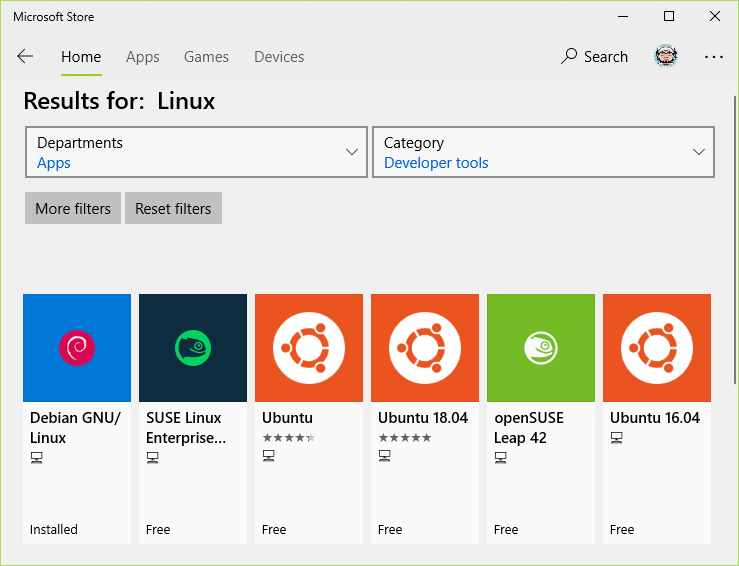
<p>After Windows have re-booted, we can begin installing Linux. Open "Microsoft Store" and search for "Linux". You will see something similar to the screen shot below.</p>

<p><img src="/assets/images/microsoft-store-wls.png" alt="Microsoft Store with different Linux distros to choose from" /></p>

<p>Currently your options are <a href="https://www.debian.org/">Debian</a>, <a href="https://www.kali.org/">Kali Linux</a>, <a href="https://www.suse.com/">Suse (Enterprise and OpenSuse)</a> and <a href="https://www.ubuntu.com/">Ubuntu (versions 16.04 and 18.04)</a>. To install, click any Linux distro you want and then hit the "Install" button. For me, I went with Debian.</p>

<p>Once that is successfully downloaded and installed, you can launch it from the Microsoft Store by clicking on the "Launch" button or look for it at your Window's Start Menu. Alternatively, you can launch it from the command prompt by typing the name of the distro e.g. <code>debian</code>, or <code>ubuntu</code>. I am not sure about Kali Linux and Suse though.</p>

<p>Now there is one more step to complete the installation and Microsoft calls this the initialisation step. To do this, just launch the Linux distro and a command prompt will appear to complete the installation. Once everything is completed, you'll be prompted to enter a user name and password like below.</p>

<pre><code>Installing, this may take a few minutes...
Installation successful!
Please create a default UNIX user account. The username does not need to match your Windows username.
For more information visit: https://aka.ms/wslusers
Enter new UNIX username:
</code></pre>

<p>You can put in any username and it is not related to your Windows' username. To use your Linux distro, there is no login required. So, the password is mainly used when you need to run commands with <code>sudo</code>.</p>

<p>For more information on the installation, you can refer <a href="https://docs.microsoft.com/en-us/windows/wsl/initialize-distro">here</a>.</p>

<h2>Post-installation</h2>

<h3>System Update</h3>

<p>Before you start messing around in your Linux distro, it is always good to keep your system updated.</p>

<p>For Debian-based distros like Debian, Ubuntu and Kali Linux, you can run the two commands below, one after the other.</p>

<pre><code>$ sudo apt update
$ sudo apt upgrade
</code></pre>

<p>Once that is done, you are good to go.</p>

<p>To install packages for Debian-based Linux distros, you can use the <code>apt install</code> command e.g. <code>sudo apt install firefox</code>. To know in more detail how to use the <code>apt</code> command, you can type <code>apt -help</code> at the prompt. This will show a list of commands to use.</p>

<h3>Opening a GUI Application</h3>

<p>If you haven't notice, there is no graphical user interface (<em>GUI</em>). All interactions are through the <a href="https://en.wikipedia.org/wiki/Bash_(Unix_shell)">Bash Shell</a>. It is still possible to open a GUI application like a web browser.</p>

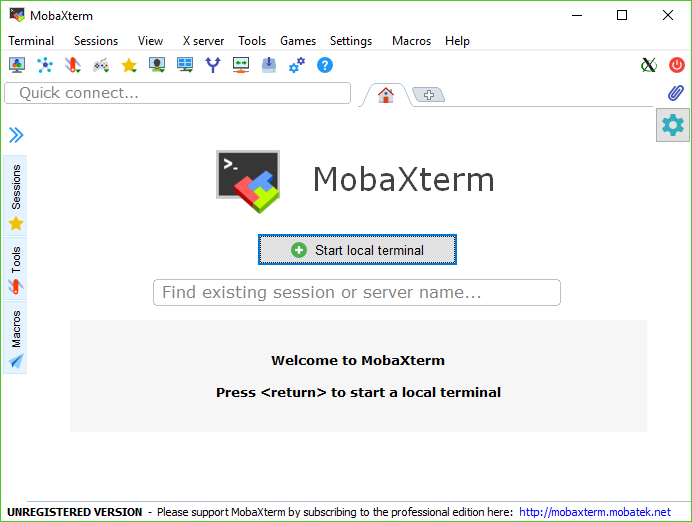
<p>You will need to install <a href="https://en.wikipedia.org/wiki/X.Org_Server">X Server</a> in Windows. There are a few you can choose from such as <a href="https://mobaxterm.mobatek.net/">MobaXterm</a>, <a href="https://sourceforge.net/projects/xming/">Xming</a> and <a href="https://cygwin.com/">Cygwin</a>. Initially I chose to use Cygwin because I already have that installed. But I setting it up was too painful and it didn't work. So, I installed MobaXterm instead. If you use <a href="https://chocolatey.org">Chocolatey</a>, you can run the command <code>choco install mobaxterm</code>. Otherwise, download and install from <a href="https://mobaxterm.mobatek.net/">their website</a>.</p>

<p><img src="/assets/images/wsl-mobaxterm.png" alt="MobaXterm for X Server" /></p>

<p>After installing X Server on Windows, your Linux distro needs to know where to direct the display to. And we don't really want to set this manually each time we use our Linux distro, do we? You will have to run the below command to have it set to you <code>.profile</code>.</p>

<pre><code>$ echo 'export DISPLAY=localhost:0.0' &gt;&gt; ~/.profile
$ source ~/.profile
</code></pre>

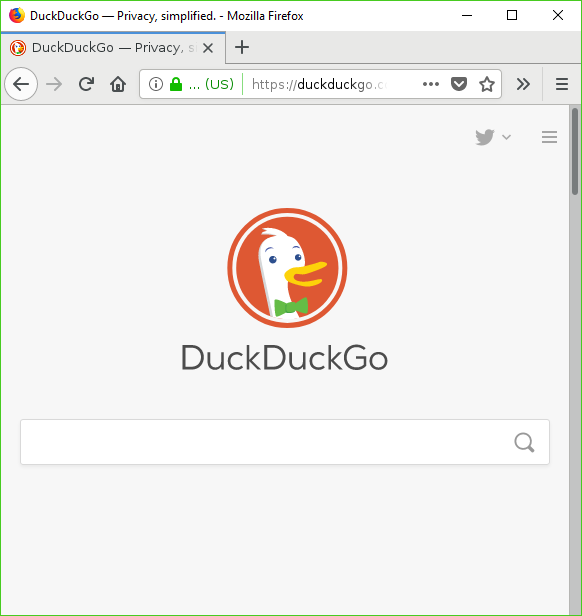
<p>Now, you can test it with any GUI application you have installed. Below you can see a screenshot of the Firefox webs browser which I installed in my Debian system.</p>

<p><img src="/assets/images/wsl-firefox.png" alt="Firefox installed on Debian running on WSL" /></p>

<h2>Pain-in-the-ass Moments</h2>

<h3>Emacs</h3>

<p>I encountered a number of issues whilst setting up emacs.</p>

<ol>
<li><p>"Client failed to connect to the D<sub>BUS</sub> Daemon:"</p>

<p>First launch of emacs, I was greeted with the below error messages.</p>

<pre><code>(emacs:291): GConf-WARNING **: Client failed to connect to the D-BUS daemon:
/usr/bin/dbus-launch terminated abnormally without any error message

(emacs:291): GConf-WARNING **: Client failed to connect to the D-BUS daemon:
/usr/bin/dbus-launch terminated abnormally without any error message

(emacs:291): GConf-WARNING **: Client failed to connect to the D-BUS daemon:
/usr/bin/dbus-launch terminated abnormally without any error message

(emacs:291): GConf-WARNING **: Client failed to connect to the D-BUS daemon:
/usr/bin/dbus-launch terminated abnormally without any error message

(emacs:291): GConf-WARNING **: Client failed to connect to the D-BUS daemon:
/usr/bin/dbus-launch terminated abnormally without any error message

(emacs:291): GConf-WARNING **: Client failed to connect to the D-BUS daemon:
/usr/bin/dbus-launch terminated abnormally without any error message
</code></pre>

<p>After some searching, I came across an article which mentioned to install the <code>dbus-x11</code> package. Installing it actually fixed that. Phew!</p></li>
<li><p>I Installed The Wrong Version of Emacs</p>

<p>With emacs up and running, I ran <code>git clone</code> to download my emacs' config file from <a href="https://github.com/alvinsim/dotfiles">my Github "dotfiles"</a> repository and copied it to <code>~/.emacs.d/</code>. I opened that file in emacs and evaluated it (<code>M-x eval-buffer</code>). This time, it coughed out "Package 'emacs-25' is unavailable". Now, this is really odd because I thought I have the updated version (<em>current release version as of this writing is 26</em>). I confirmed my emacs version once and noticed it was version 24. When I installed emacs, I ran <code>sudo apt install emacs</code>. I checked Debian's site and noticed that the latest emacs version it supports is version 25. To install it, I should run <code>sudo apt install emacs25</code> instead.</p>

<p>DANG IT!</p>

<p>I removed that emacs version and installed version 25. And now everything seems to be OK. <em>Fingers crossed</em>.</p></li>
<li><p>Org Mode Package Conflict?</p>

<p>To make sure there is no further issues with my emacs config file, I closed emacs, removed all the loaded packages in <code>~/.emacs.d/elpa</code> and opened emacs again.</p>

<p>This time, I get an error with org mode with the error message "Symbol’s function definition is void: org-link-types". It seems like a known issue with emacs version 25.1.1. You can refer to this <a href="https://github.com/syl20bnr/spacemacs/issues/8334">issue reported in github</a>.</p>

<p>Basically this error is because of va conflict with the built-in org package in emacs and the org-plus-contrib package I installed separately.</p>

<p>To fix this, I removed the built-in <code>org</code> directory, which you can find at <code>/usr/share/emacs/25.1/lisp/org</code>.</p>

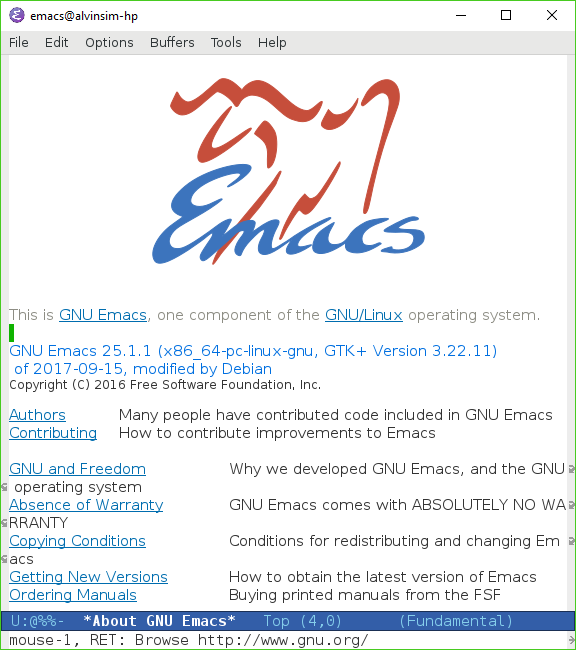
<p>I then restarted emacs and <em>cross-fingers</em> everything is OK for now.</p>

<p><img src="/assets/images/wsl-emacs25.png" alt="Finally emacs running with no errors" /></p></li>
</ol>

<h3>Node.js</h3>

<p>As usual, I installed <a href="https://nodejs.org">Node.js</a> using the command <code>sudo apt install nodejs</code>. There were no issues with Node.js, but you might have this issue with npm when you already have a version of installed in your Windows. Running <code>npm</code>, you will be greeted with the error below. This is a known issue and you can have a read <a href="https://github.com/Microsoft/WSL/issues/1512">here</a>.</p>

<pre><code>$ npm
: not foundram Files/nodejs/npm: 3: /mnt/c/Program Files/nodejs/npm:
: not foundram Files/nodejs/npm: 5: /mnt/c/Program Files/nodejs/npm:
/mnt/c/Program Files/nodejs/npm: 6: /mnt/c/Program Files/nodejs/npm: Syntax error: word unexpected (expecting "in")
</code></pre>

<p>To properly install Node.js, run the below command.</p>

<pre><code>curl -sL https://deb.nodesource.com/setup_10.x | sudo -E bash -
sudo apt install -y nodejs
</code></pre>

<h1>Conclusion</h1>

<p>It was time consuming and very painful setting up Debian or generally any Linux distro on WSL. It is so much easier setting up a fresh install of Debian or FreeBSD on a VM. I do want to give WSL the benefit of the doubt, but it is out of beta and I wasn't expecting all of this.</p>

<p>To be frank, I screwed up my first set-up and had to re-install everything from scratch. On my first attempt while hitting the D-BUS issue with emacs, I read some comments that mentioned to build emacs from source with the <code>--without-dbus</code> option. That worked but other issues cropped up.</p>

<p>Another issue I had on my first try was Xming for X Server and things look kind of weird.</p>

<p>In total, I think it took me around 2 - 3 days. If later things really don't work out, I will drop this and go back to my FreeBSD VM.</p>

<p>Anyway, if you are new to Linux/Unix and you are looking for something to play with, this would be a good platform for you to mess around.</p>

<p>Let me know your experience with WSL. It would be great to know issues which other people face and maybe we can provide a helping hand.</p>

<p>– <em>Alvin Sim</em></p>]]></content><author><name>Alvin Sim</name></author><category term="archived" /><category term="debian" /><category term="emacs" /><category term="linux" /><category term="miscrosoft" /><category term="windows" /><category term="nodejs" /><category term="npm" /><category term="wsl" /><summary type="html"><![CDATA[One day on my way back home, I was listening to one of Hanselminutes's podcast episodes titled "Inside Linux on Windows with WSL and Tara Raj".]]></summary></entry></feed>